
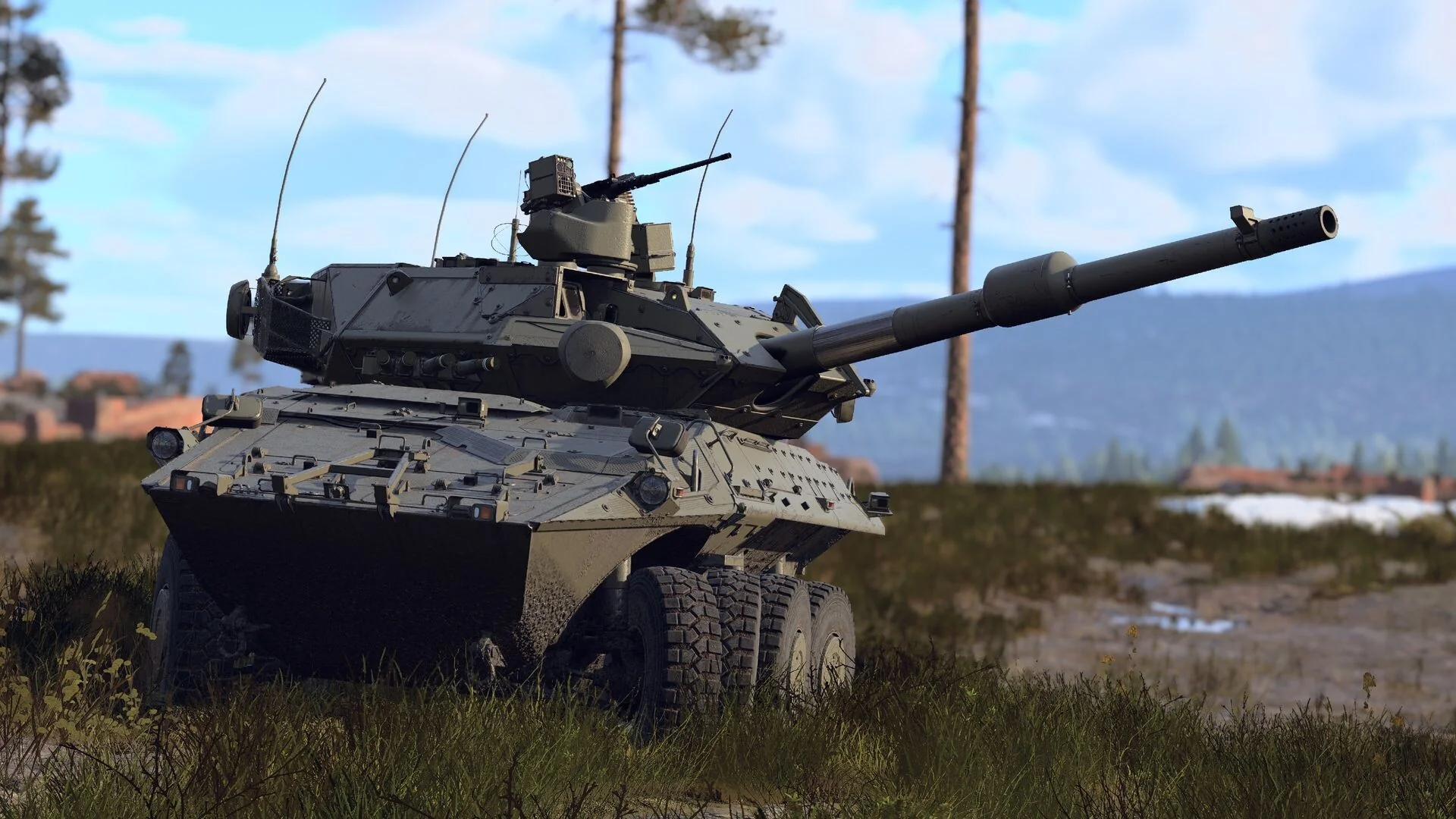

War Thunder's scalability is one of its underrated strengths: it's built to run on hardware that has no business running a modern combined-arms military game, right down to a stated minimum of a dual-core CPU and 4GB of RAM. But past a certain point, the settings that matter most in War Thunder aren't about how the game looks — they're about whether you see the tank or aircraft that's about to see you first.
System Requirements
| Spec | Minimum | Recommended |
|---|---|---|
| OS | Windows 10 64-bit | Windows 10/11 64-bit |
| CPU | Dual-core 2.2 GHz | Core i5 or Ryzen 5 3600 or better |
| GPU | GeForce GTX 660 / Radeon HD 7700 | GeForce GTX 1060 or better / Radeon RX 570 or better |
| RAM | 4 GB | 16 GB |
| DirectX | 11 | 11 or higher |
| Storage | 70 GB | 95 GB |
The gap between minimum and recommended storage is real, not a typo — War Thunder's asset library has grown enormously over the years, and the extra 25GB in the recommended spec covers higher-resolution textures and vehicle models that the minimum install skips.
The Setting That Actually Matters: Object Quality and LOD
Object detail and level-of-detail distance control something more important than visual fidelity in War Thunder: how early you can identify a tank silhouette or an aircraft dot at range. Competitive players consistently run Object Quality on Low-to-Medium not for frame rate, but because it renders distant vehicles as flatter, higher-contrast shapes against terrain rather than blending them into busier, more detailed surroundings. This is one of the rare cases in any game where a "worse" setting is a genuine gameplay advantage rather than just a performance trade-off — know this going in, because a setting that looks like it's for low-end hardware is also what high-end players choose on purpose.
Anti-Aliasing, Resolution Scale, and the API Picker
FXAA is nearly free and removes enough jagged edges to matter for spotting; heavier options like TAA soften the image in a way that costs some of the same distant-target clarity Object Quality is protecting. If you're frame-limited, drop resolution scale before you drop anti-aliasing — a slightly softer image beats a jagged one you can't hold a stable frame rate on.
War Thunder also lets you pick a rendering API — DirectX 11, DirectX 12, or Vulkan — from the launcher before the game starts. There's no universal answer here: some AMD-based systems see a genuine boost on Vulkan, some Nvidia systems do better staying on DirectX 11, and DirectX 12 support has historically been the least stable of the three for some hardware combinations. It costs nothing to try each one for a session and keep whichever holds the steadiest frame time on your specific setup — this is one of the few settings where "it depends on your hardware" is the honest answer rather than a dodge.
Setting Up a HOTAS or Flight Stick
War Thunder's control mapping supports full HOTAS setups but doesn't auto-configure axis curves well out of the box. Go into Controls > Aircraft and manually set a curve — not linear — on pitch and roll axes, or fine aiming at range becomes nearly impossible; a linear curve makes small stick movements produce the same jumpy response as large ones, which is the opposite of what you want for tracking a target. Set dead zone just high enough to eliminate stick drift without eating the first few degrees of intentional input — the right value varies by stick model, so test it in a practice match rather than trusting a number you found online.
Realistic and Simulator Battle Settings
If you're moving up from Arcade to Realistic or Simulator battles, go into the control settings and configure instructor mode assists separately from your control curves — stall prevention and auto-rudder are worth leaving on during the transition, even in Simulator mode, since turning them off before you're ready to fly without them costs more matches than it teaches you. Turn them off deliberately, one at a time, once you can consistently recover from the situations they're currently saving you from.

Lee covers PC setup and optimization for Gamingonix, translating requirements and settings into what actually changes your performance.