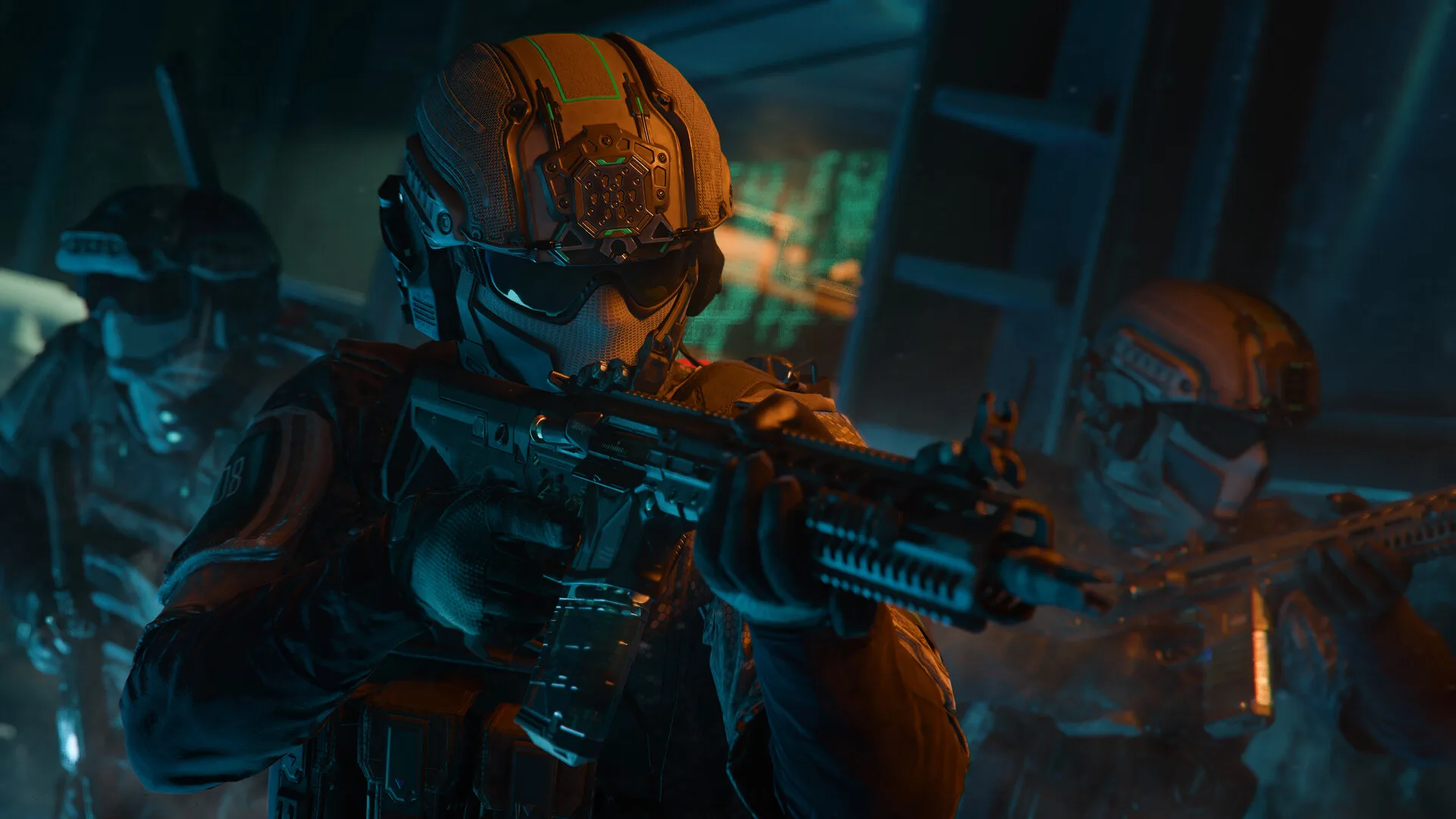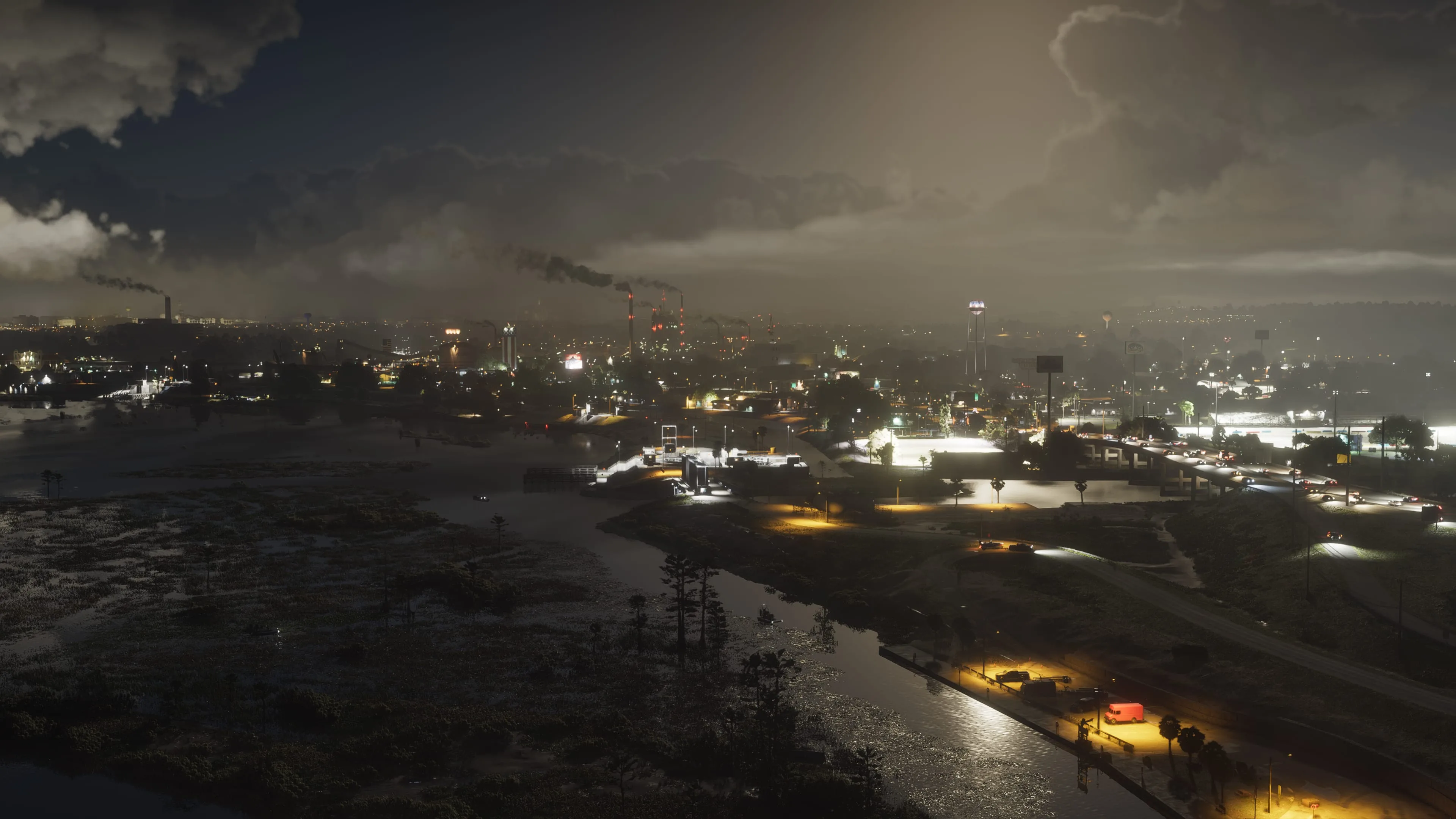


Call of Duty: Black Ops 7 is the title most PC players are actually running in 2026, and it's a genuinely wide spread of hardware asks — Activision's own minimum spec still names a CPU from 2016, while the 4K/Ultra tier wants a current-generation flagship GPU. What separates a smooth, competitive Call of Duty setup from a merely functional one isn't the graphics preset, though. It's the whole chain between your input and what shows up on screen — GPU frame time, monitor refresh, mouse polling, and network route all stack into the same number that actually decides gunfights: how long it takes your action to register.
System Requirements
| Spec | Minimum | Recommended | 4K / Ultra |
|---|---|---|---|
| OS | Windows 10/11 64-bit | Windows 10/11 64-bit | Windows 11 64-bit |
| CPU | Intel Core i5-6600 / AMD Ryzen 5 1400 | Intel Core i7-6700K / AMD Ryzen 5 1600X | Intel Core i7-10700K / AMD Ryzen 5 5600X |
| GPU | GeForce GTX 970 / GTX 1060 / Radeon RX 470 / Arc A580 (3GB VRAM) | GeForce RTX 3060 / Radeon RX 6600 XT / Arc B580 (8GB VRAM) | GeForce RTX 4080 / RTX 5070 / Radeon RX 9070 XT |
| RAM | 8 GB | 12 GB | 16 GB |
| Storage | 116 GB, SSD required | 116 GB, SSD required | 116 GB, NVMe SSD |
| Other | TPM 2.0 and Secure Boot enabled | TPM 2.0 and Secure Boot enabled | TPM 2.0 and Secure Boot enabled |
Two things on that table are worth flagging before anything else. First, TPM 2.0 and Secure Boot are hard requirements, not recommendations — RICOCHET's kernel-level anti-cheat won't let the game launch without both enabled in your motherboard's UEFI, and a lot of older or manually-built PCs have TPM support built in (as Intel PTT or AMD fTPM) but switched off by default. Check this before you troubleshoot anything else if the game refuses to start. Second, that minimum GPU floor is a "the game will run" number, not a "you'll hold a competitive frame rate" one — a GTX 970 or RX 470 will get you into a match, but not at the frame rates this article is actually about.
Why Frame Rate Matters More Than the Preset Name
Call of Duty's netcode ties your effective input responsiveness to your rendered frame rate more directly than most single-player games do, because higher frame rate means the game samples your mouse and polls the network more frequently within the same second. A stable 144+ fps isn't just smoother to look at — it's a shorter, more consistent gap between you clicking and the game registering it, which is a bigger factor in winning close gunfights than almost any texture or shadow setting. This is the reasoning behind every setting recommendation below: the goal is a high, stable frame rate and a short render queue, not the prettiest screenshot.
Graphics Settings That Actually Affect Competitive Play
Render Resolution should stay at 100% before you touch anything else — dropping it sacrifices target visibility at range for a frame-rate gain you can usually get elsewhere first. If you do need the performance, NVIDIA DLSS or AMD FSR in Quality mode recovers most of that frame rate without the same loss of distant-target clarity that a flat resolution cut causes.
Texture Resolution and Texture Filtering are cheap to run high on any GPU with 8GB or more VRAM, because they cost VRAM more than they cost frame rate — there's rarely a competitive reason to lower these unless you're VRAM-limited, and doing so mainly hurts how quickly you can read a target's silhouette against detailed surfaces.
Particle Quality and Bullet Impacts & Sprays are a genuine visibility trade-off, not just a performance one. Lower particle quality means explosions, smoke, and gunfire effects clear the screen faster and obscure enemies for less time — competitive players run this down deliberately, independent of whether their hardware can handle it higher, the same way lowered foliage settings work in other shooters.
Shadow Map Resolution and Ambient Occlusion are two of the more expensive settings for the least competitive payoff — they affect how contact shadows and corner darkening look, not whether you spot a player earlier. These are the first two sliders worth dropping if you need frame rate back, before you touch texture quality or render resolution.
Motion Blur, Film Grain, and Depth of Field should all be off, full stop. None of them help you play better, all three cost some frame time, and motion blur specifically smears exactly the kind of fast peripheral movement — a player strafing into your view — that you need to read clearly and quickly.
On-Demand Texture Streaming is worth capping to what your VRAM actually supports rather than maxing it on principle; setting it above your card's VRAM budget causes texture streaming stutter that's worse for consistency than running one tier lower and never hitting the ceiling.
Peripherals: The Part of the Chain Most Players Skip
A monitor's refresh rate sets a hard ceiling on how much of your GPU's frame rate you can actually see — a 240fps GPU output on a 60Hz panel is throwing away frames you paid performance for. For competitive Call of Duty, 144Hz is the realistic floor and 240Hz+ is where diminishing returns start; the jump from 60Hz to 144Hz is far more noticeable than 144Hz to 240Hz, so prioritize that first upgrade if you're choosing between a new monitor and a new GPU.
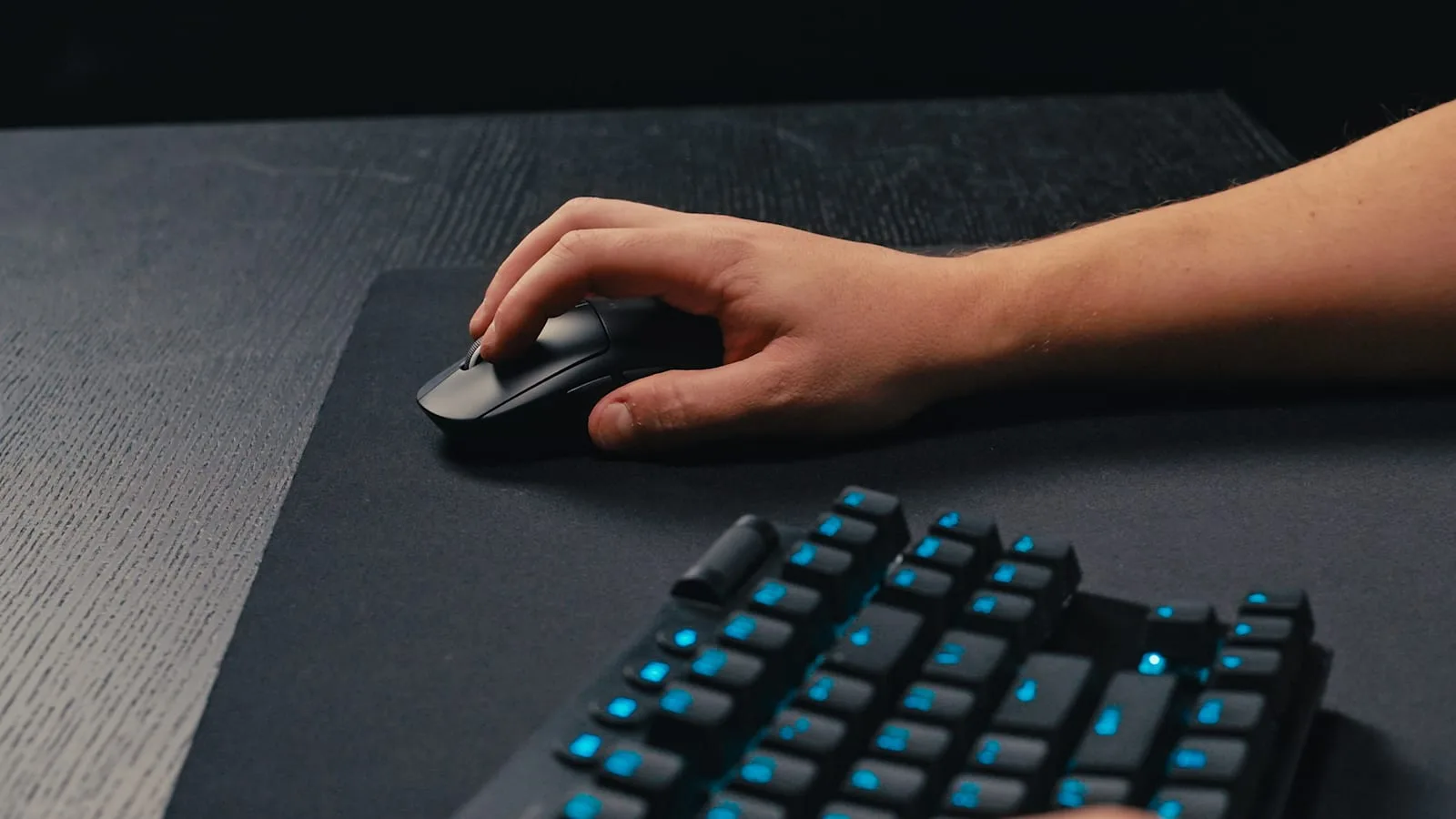
Mouse polling rate determines how often your mouse reports position to the PC — 1000Hz (1ms) has been the practical standard for years and is worth confirming is actually selected in your mouse's software rather than assumed, since some mice default lower out of the box. Newer 4000Hz and 8000Hz mice exist and do measurably reduce click-to-frame latency further, but the gain is smaller than the 125Hz-to-1000Hz jump was, and it matters less than making sure your frame rate is stable in the first place — a fast-polling mouse feeding an inconsistent frame rate doesn't fix the inconsistency. DPI itself doesn't affect latency at all; it's a sensitivity curve choice, and most competitive players run DPI in the 400–800 range with in-game sensitivity doing the rest of the scaling, mainly because it keeps small aim adjustments predictable at higher effective sensitivities.
Keyboard choice matters less for latency than most marketing implies, but polling rate and anti-ghosting (full n-key rollover) do matter for Call of Duty specifically, since strafing, jumping, and reloading often stack multiple simultaneous key presses that a cheaper keyboard can silently drop.
A headset is a genuine gameplay input in Call of Duty, not just an immersion upgrade — footstep audio and directional gunfire cues are how you get early warning on a flanker before you see them, which puts headset choice closer to "gameplay advantage" than "comfort accessory." Positional accuracy matters more here than raw driver quality; a mediocre headset with clear stereo imaging will out-perform an expensive one tuned for bass on this specific task.
Windows and Driver Settings Worth Checking
Enable Windows Game Mode and confirm Hardware-Accelerated GPU Scheduling is on in Windows' Graphics settings — both reduce scheduling overhead between the CPU and GPU with no real downside on modern Windows 11 builds. Set your power plan to High Performance or Ultimate Performance rather than Balanced, since Balanced actively throttles CPU clocks to save power in ways that show up as inconsistent frame times, not just lower averages.
Close background overlays you're not actively using — Discord's overlay, GeForce Experience/NVIDIA App overlay, and browser windows all add a small but real amount of frame-time variance, and Call of Duty is sensitive enough to input timing that "small" is still worth removing. Keep GPU drivers current specifically around Call of Duty's own major content updates; Activision's larger seasonal patches frequently ship alongside a corresponding game-ready driver from NVIDIA or AMD, and running an older driver against a new build is a common, avoidable source of stutter. If you're on an NVIDIA GPU, enable NVIDIA Reflex inside the game's own graphics menu — it's built specifically to shorten the render queue between your input and what the GPU displays, and it's one of the few in-game toggles that reduces latency with essentially no visual cost.
Network: Wired Beats Wireless, and It's Not Close
A wired Ethernet connection should be the default for any competitive session — Wi-Fi introduces variable latency and occasional packet loss that a wired connection simply doesn't have, even on a strong router in the same room. If running a cable isn't practical, a wired powerline adapter is a better fallback than Wi-Fi in most homes, though neither matches a direct Ethernet run.
Port forwarding the ports Call of Duty actually uses (Activision publishes the current list per title) on your router can resolve an NAT type stuck on "Strict" or "Moderate," which otherwise shows up as slower lobby connections and, in some cases, being routed through a relay server instead of a more direct connection to other players. If your router supports Quality of Service (QoS) settings, prioritizing your gaming PC's traffic helps specifically in households where someone else is streaming video or downloading during your session — it won't fix a genuinely bad internet connection, but it stops other traffic on the same network from stealing bandwidth at the worst moment.

Lee covers PC setup and optimization for Gamingonix, translating requirements and settings into what actually changes your performance.