
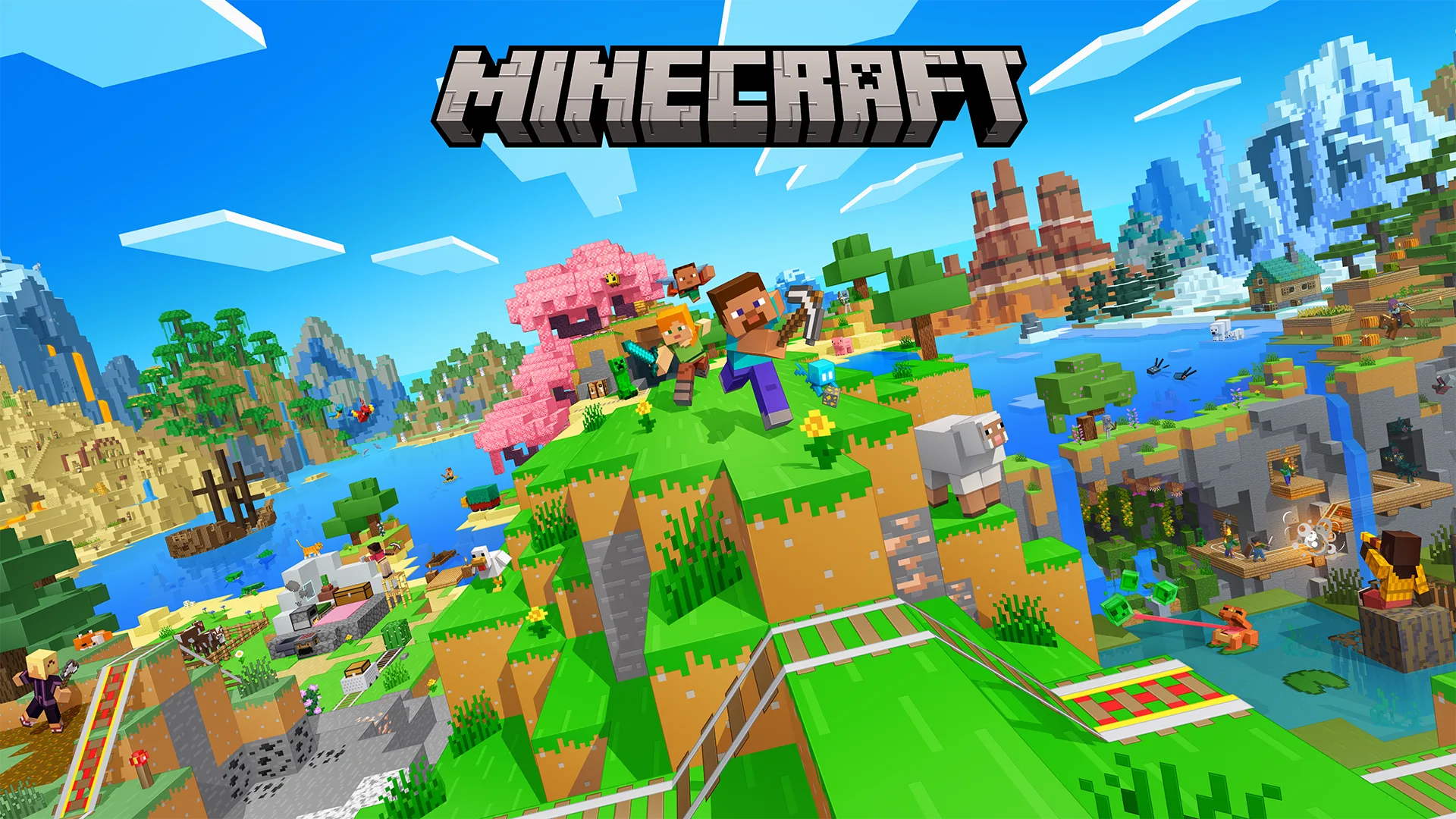
Minecraft arrived on Nintendo Switch 2 on October 27, 2026, and it's a genuine rebuild of the Bedrock Edition around the new hardware — not just a higher resolution. That brings real decisions new players on this specific console need to make before they ever punch a tree: which graphics mode to run, how to bring an old world over, how local co-op actually splits up, and whether the free upgrade even applies to your copy. None of this is covered by a general Minecraft guide, because none of it exists on other platforms in quite the same form.
Check Whether Your Upgrade Is Actually Free
If you already own Minecraft on the original Switch, don't buy the Switch 2 version outright — check your eligibility first. Mojang is offering a free digital upgrade to the Switch 2 Standard Edition for anyone who owns a digital copy of Minecraft for Switch, and that offer runs through January 31, 2027. The catch is the word "digital": if your original copy is a physical cartridge, there's no free upgrade path, and you'll need to buy in fresh. Standard Edition runs $29.99, with Deluxe Collection at $39.99 and Ultimate Collection at $49.99 if you want the bundled DLC packs — every tier includes the Super Mario Mash-Up Pack either way.
Pick Performance Mode for Handheld, Quality Mode for the TV
The headline Switch 2 feature is Vibrant Visuals — Mojang's lighting overhaul with real reflections on water, volumetric fog, and dynamic shadows that move with the light source. It looks genuinely different from the flat Switch 1 version, but it isn't free, and the game gives you a direct trade-off between Quality Mode and Performance Mode.
Quality Mode runs Vibrant Visuals at full strength and settles around 40fps. Performance Mode keeps the game closer to a steady 60fps by trimming resolution and some of those lighting effects. For handheld play, where a dropped frame is more noticeable and battery life already takes a hit from the brighter screen, Performance Mode is the better default — building and combat both feel more responsive. Docked on a TV, where you're sitting further back and visual fidelity reads better, Quality Mode is worth trying first, especially if you're exploring rather than fighting. There's no 4K mode and no ray tracing on this version, despite online chatter — if a setting is labeled as either, you're looking at a different platform's marketing copy.
Bring Your World Over the Right Way
If you've got a Switch 1 world you don't want to lose, the actual transfer tool lives in system settings, not inside Minecraft. On your original Switch, go to System Settings > Data Management > Transfer Your Save Data, then on the Switch 2 go to the same menu and choose Receive Save Data. This moves your existing Switch worlds over directly and they'll be playable as soon as the transfer finishes — you don't need to rebuild anything.
What this method doesn't do is sync your world to other platforms. Signing into the same Microsoft account on an Xbox or PC won't pull your Switch world across automatically; local saves stay tied to the console they were created on. If you want a world you can genuinely carry between a Switch 2, a PC, and a phone, you need to host it on Minecraft Realms, which is the only official way to move a world between closed console ecosystems. Both the inter-console save transfer and Realms syncing require a Nintendo Switch Online subscription and a signed-in Microsoft account, so get both set up before you assume either feature will work.
Don't Wait on Mouse Mode — It's Not Coming Yet
If you bought a Switch 2 for the Joy-Con 2's mouse functionality and assumed it would carry over to Minecraft's inventory and building screens, it hasn't — at launch, Mojang didn't implement mouse mode for this version, despite it being one of the more obvious fits for the feature. You're playing with standard stick-and-button controls on Joy-Con, Joy-Con 2, or either generation of Pro Controller, same as the old Switch. There's no motion-control aiming either. The one real addition is touchscreen support in handheld mode, which is genuinely useful for fast inventory sorting and crafting-grid management without digging through button menus — turn it on if you're playing undocked, since it saves real time over the stick-driven cursor.
Split-Screen Caps at Four, and Everyone Needs a Controller
Local co-op on one console supports up to four players split-screen, each with their own compatible controller — a meaningful jump from what Switch 1 could comfortably handle, since faster load times and chunk generation make four-way splits far less choppy than before. Beyond the console itself, local wireless lets two to eight players link up on separate nearby Switch 2 units, and full online multiplayer supports two to eight players over the internet. The practical limit you'll hit first isn't the game's player cap, it's controller count: the console ships with enough Joy-Con for two players out of the box, so a four-player couch session means having two extra compatible controllers on hand before everyone sits down, not after.
Cross-Play Works, But Check the Edition First
The Switch 2 version runs on Bedrock Edition, which means it plays online with the same cross-platform pool as Xbox, PC Bedrock, mobile, and PlayStation — you're not stuck in a Switch-only lobby. If a friend on PC or Xbox invites you to their world, or you want to join a public Bedrock server, it should work without any conversion step. The one thing worth confirming before you build your plans around a specific friend group is which edition they're on — Java Edition (PC-only) and Bedrock Edition are still separate ecosystems that don't cross-play with each other, Switch 2 included.
Storage Is Small, But Don't Skip Checking It
Minecraft's base install is tiny by modern standards — listed around 1.2 to 1.5GB on the Nintendo Store — so storage pressure isn't really a launch concern. Where it adds up is Marketplace content: texture packs, skin packs, and especially the bundled Super Mario Mash-Up Pack all install as additional downloads layered on top of the base game, and if you're running the Switch 2 off a smaller internal allotment shared with several other games, those extras are worth checking before you buy a Deluxe or Ultimate Collection pack you don't have room for yet.
Bottom Line
Before you load your first world, confirm your upgrade eligibility (digital copy only), set Performance Mode for handheld sessions and try Quality Mode docked, and use the system-level save transfer tool rather than assuming your account will sync it automatically. Everything else — building, mining, survival — plays like the Minecraft you already know. The platform-specific decisions are the ones that'll actually bite you if you skip them.
Alex writes practical, beginner-friendly guides for Gamingonix, turning confusing early-game decisions into clear next steps.