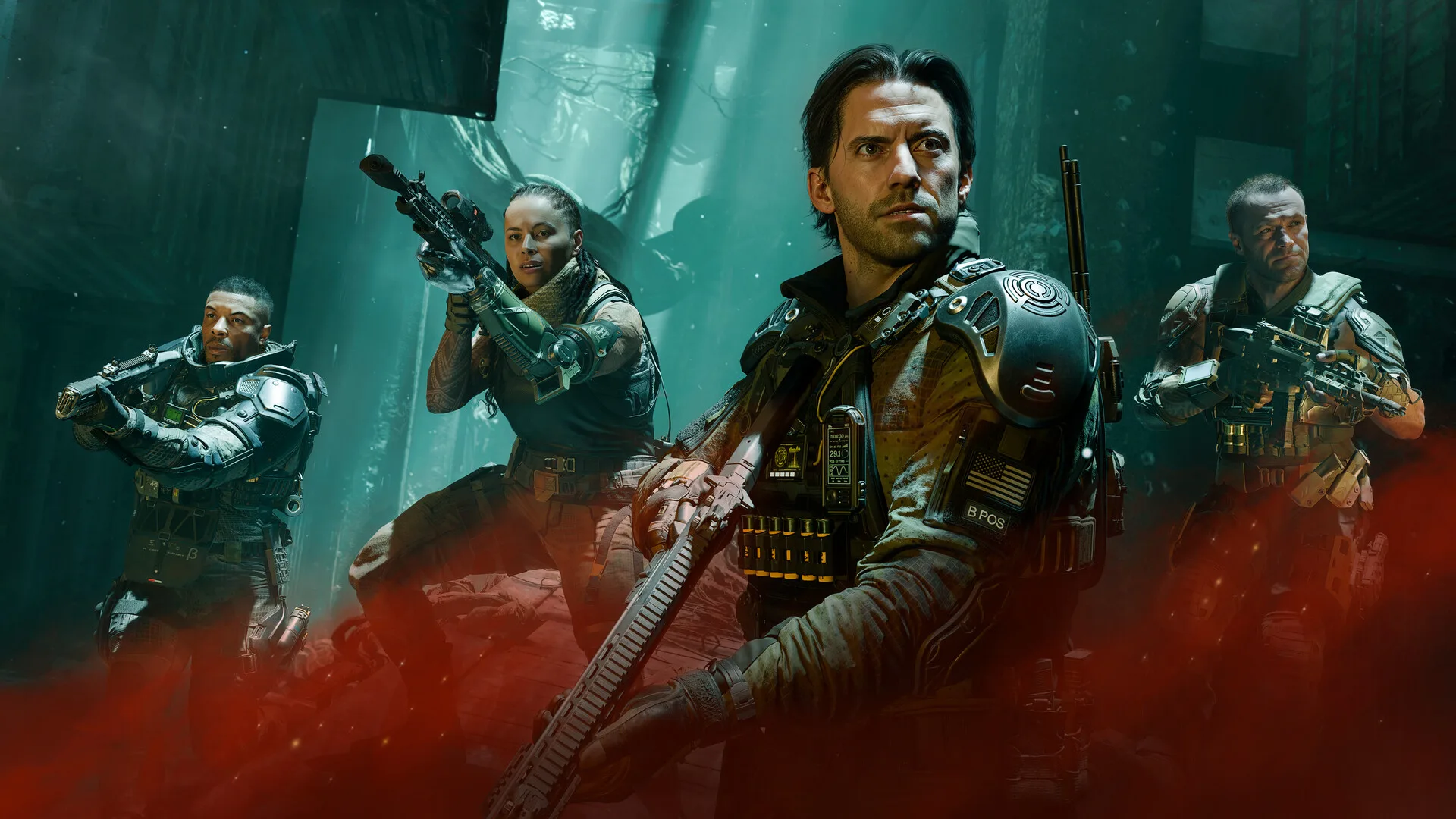


Black Ops 7 will run on whatever monitor you own, but how it looks and feels in a gunfight depends almost entirely on settings you've probably never touched — half of them on the monitor itself, not in the game's menu. A 4K panel with the wrong response time setting can feel worse than a cheap 1080p one tuned correctly, and the difference usually isn't frame rate, it's motion clarity and input lag stacking up without you noticing. Here's where to actually spend your time, starting with the trade-off that matters before any of the others.
Refresh Rate Over Resolution, Every Time
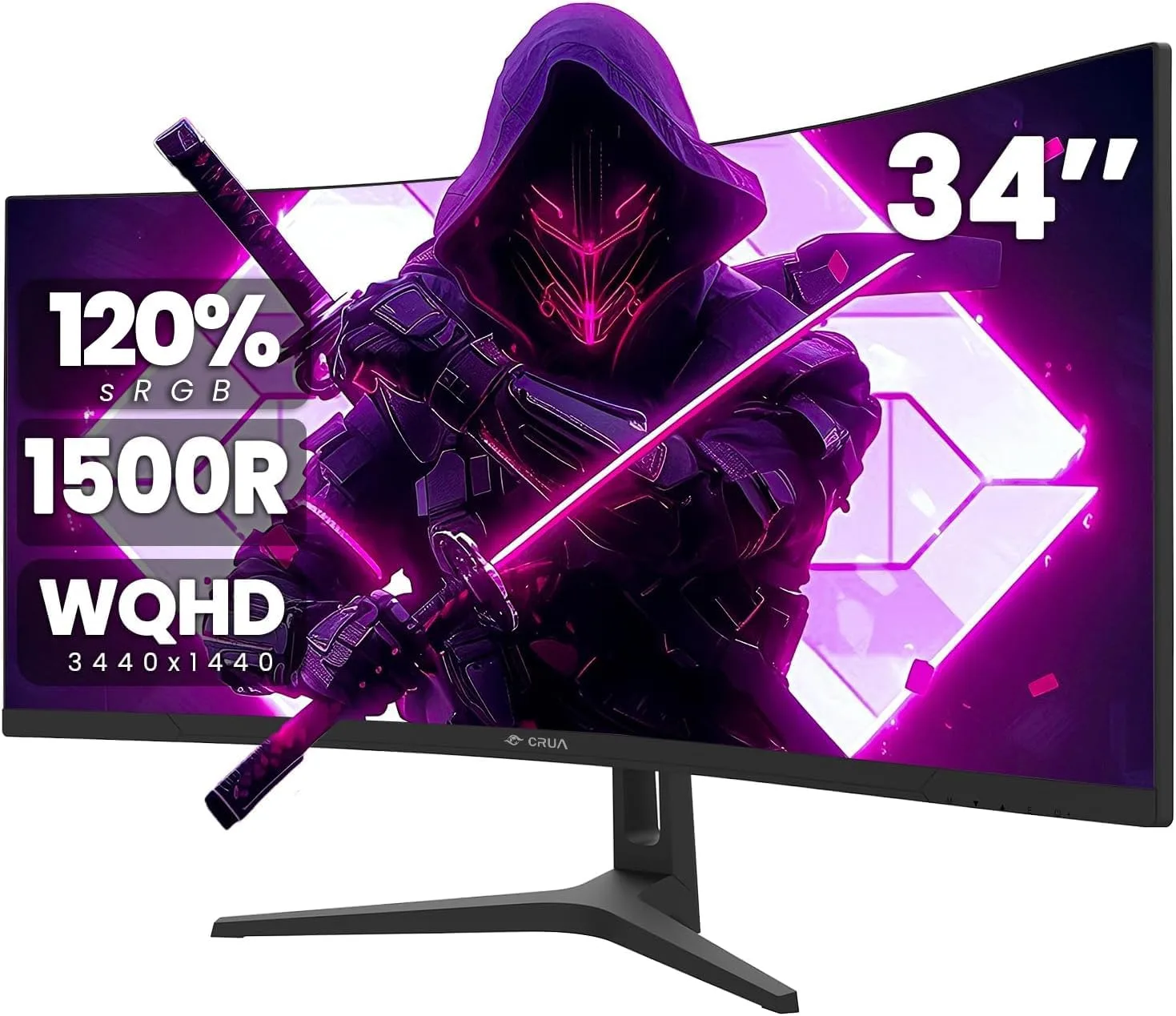
If you're choosing between a sharper picture and a higher refresh rate, take the refresh rate. Black Ops 7's gunfights are decided by who tracks and reacts to movement first, and a 144Hz or 165Hz panel shows you noticeably more of that movement per second than a 60Hz or 75Hz one, regardless of how clean the image looks standing still. Dropping from 4K to 1440p — or from 1440p to 1080p — to hit a stable 144+ fps is the right call on a mid-range GPU, because a locked 144fps at lower resolution beats a choppy 70fps at native 4K in every gunfight that matters. Resolution helps you read distant details and UI text; refresh rate helps you win the exchange. In Black Ops 7 specifically, prioritize whichever one gets you to triple digits first.
Response Time and Motion Blur Reduction
A fast refresh rate doesn't help if the panel itself smears motion, which is the response time problem. Most modern gaming monitors list a 1ms response time, but that number is usually measured with the panel's overdrive (sometimes labeled "OD," "Trace Free," or "Response Time" in the OSD) pushed aggressively — and pushing it too far causes inverse ghosting, a pale trailing halo behind fast-moving targets that's arguably worse than the blur it's fixing. Set overdrive to your monitor's second-highest setting first, not the max one, and watch for haloing around a moving crosshair or operator model; back it off one notch if you see it. If your monitor has a backlight strobing mode (often called ULMB, ELMB, or a motion-blur-reduction toggle), it genuinely sharpens fast motion further, but it usually caps your refresh rate and dims the panel — worth trying, but don't assume it's a free upgrade over just running G-Sync or FreeSync at full refresh.
G-Sync, FreeSync, and Why V-Sync Should Stay Off
If your monitor supports G-Sync or FreeSync (most monitors released in the last several years do, under one name or the other), turn it on in your GPU control panel and leave V-Sync off inside Black Ops 7's display settings. V-Sync caps your frame rate to your refresh rate and adds a render queue that directly delays how fast your inputs reach the screen — exactly what you don't want in a game built around split-second reactions. G-Sync and FreeSync solve the same screen-tearing problem V-Sync does, but by syncing the monitor's refresh to the GPU's output rather than forcing the GPU to wait, so you get a tear-free image without the added input lag. On PC, pair this with NVIDIA Reflex Low Latency — set to On, or On + Boost if your GPU can sustain it — which shortens the render queue further and is built specifically for competitive shooters like this one. If you're on PS5 or Xbox Series X|S, enable VRR in your console's video settings and plug into a VRR-capable display; it's the same fix for the same problem, just handled at the console level instead of the GPU driver.
Brightness, Gamma, and Contrast for Actually Seeing Enemies
Black Ops 7's default display settings are tuned to look cinematic, not to make enemies easy to spot, and that's the first thing to change. Set gamma to 2.2 — the standard sRGB value — rather than nudging it lower for a moodier look; anything darker just hides players in shadowed corners you'd otherwise clear safely. Push in-game brightness to roughly 55–60 out of 100, a bit above the default, which lifts shadow detail without blowing out highlights or washing out the UI. On the monitor itself, turn off dynamic contrast and any "enhanced" or "vivid" picture mode — these adjust brightness and contrast on the fly based on scene content, which is useful for movies and actively bad for a shooter where you need consistent visibility whether you're staring at a bright sky or a dark doorway. A flat, manually set contrast level around 60–70% on the monitor's own OSD menu, left alone, gives you a far more predictable picture than any "gaming" preset that's silently adjusting itself mid-match.
Color Calibration That Actually Helps You Spot Enemies
Oversaturated color looks good in a store display and actively hurts your ability to pick out enemy operators against Black Ops 7's busier maps. Dial your monitor's saturation back toward neutral rather than maxing it — overly vivid greens and browns on foliage-heavy maps bleed into enemy skins that use similar earth tones, making a moving target harder to separate from the background, not easier. If your monitor has a dedicated "FPS" or "Competition" color mode in its OSD, it's usually built around exactly this idea — slightly cooler whites and reduced saturation — and it's worth testing against your default mode on a map like the ones with heavy foliage or smoke effects. Leave HDR off unless you've properly calibrated your specific panel's HDR brightness and tone-mapping — most monitors handle HDR inconsistently out of the box, and a badly tuned HDR mode will crush shadow detail exactly where enemies like to hide, which defeats the brightness and gamma work you just did in the section above.
Monitor Settings That Quietly Add Input Lag
Past the obvious settings, most input lag on a modern monitor comes from processing you never asked for. Switch your monitor's picture mode to "Game Mode" if it has one — this bypasses a chunk of the panel's internal image processing (sharpening filters, noise reduction, scaling smoothing) that otherwise adds a frame or two of delay before anything reaches your eyes. Turn off any local dimming, motion interpolation (sometimes called "Black Frame Insertion" when not paired with strobing, or a frame-smoothing feature on TVs used as monitors), and built-in sharpening — all of them process the image after it's been rendered, which is latency you're adding for no competitive benefit. If you're using a TV as your monitor, confirm it's genuinely running its low-latency Game Mode and not just displaying "PC" as the input label; TVs in particular can add 20-plus milliseconds of unnecessary lag if that mode isn't actually engaged. Finally, use DisplayPort over HDMI where your monitor supports both — it's more consistently reliable for running higher refresh rates at full bandwidth without the display quietly stepping down resolution or color depth to compensate.
Bottom Line
Chase refresh rate before resolution, and don't let a panel's aggressive overdrive setting trade motion blur for visible ghosting instead. Turn V-Sync off and let G-Sync, FreeSync, or console VRR handle tearing without the input lag, and pair it with NVIDIA Reflex on PC. In Black Ops 7's own menu, gamma 2.2 and brightness around 55–60 will show you more than the cinematic defaults do, and a calmer, less saturated color setup on the monitor itself makes enemies stand out rather than blend in. Everything else — Game Mode, disabled local dimming, DisplayPort over HDMI — is about getting the image to your eyes with as little added delay as possible, which matters just as much as any of the flashier settings above.

Alex writes practical, beginner-friendly guides for Gamingonix, turning confusing early-game decisions into clear next steps.